photo slide website innovate with ipad book_zpsqyi3gooq.png

Available for Purchase Now!

In “Innovate with iPad: Lessons to Transform Learning in the Classroom” primary teachers Karen Lirenman and Kristen Wideen provide a complete selection of clearly laid out engaging open-ended lessons to change the way you use iPad in the classroom.

 photo slide2websitekristen_zps6b0197d1.png

Connect, Collaborate and Create with Twitter in the Classroom

This article originally appeared in the Spring 2014 issue of ETFO Voice.

photo 3d geometry blog slide image mrswideen_zpsxs99jzaa.png

Course Description

In this grade two 3-D Geometry iTunes U Course, students will explore attributes of 3-D objects using concrete materials and drawings. Students will also build and construct 3-D objects and models as well as develop language to describe geometric concepts.

 photo slidewebsitebook_zps9c1fe84d.png

One Best Thing

Discover how to keep parents informed, connect globally and link to your curriculum. This One Best Thing leads your primary classroom students through the creation of a learning network on Twitter.

Sunday, October 14, 2012

Community Read

Last Thursday my class participated in our first Community Read.  I was talking to my good friend Karen Lirenman on google hangout a couple of weeks ago and she was sharing pictures of her first Community Read.  I loved the idea and I asked her if it would be okay if I tried it out in my room.  She said, "of corse."  I immediately wrote up a letter inviting the parents into my classroom on Tuesdays and Thursdays at the morning bell to read with their children for 15 minutes at the beginning of the day.    After the 15 minutes, parents, grandparents, or whoever came to read with the children would leave and we would get on with our day.  Our first Community Read was a huge success.  Many families came in and read with their children in our Learning Commons.  The student's that did not have family available to come, read with volunteers, other teachers and myself.  It was great having the parents in and seeing the children reading to them!  I can't wait for Tuesday!                                        


Tuesday, October 9, 2012

A Collaborative Personal Narrative Writing Unit

Today we began our Personal Narrative Writing Unit.  I say "we" because our class (from Windsor, Ontario) and Mrs. Soltauheller's class (from British Columbia) are doing the unit together. Mrs. Soltauheller and I worked on the unit and all the details using Google Hangout from our homes after school last week.  We decided that I would teach the first lesson to introduce what a Personal Narrative is and to tell the students that they would be writing their own books during this unit.  I chose to read the book "BigMamama's" by Donald Crews.  Mrs. Soltauheller and I thought the students would enjoy the story if I took pictures of the story and created a movie using iMovie with myself reading the story.  

Here is the story the student's watched before the lesson:


After the video was shown, Mrs. Soltauheller called us using Skype so her class could watch and participate in the lesson.
We first created an anchor chart together and we talked about how the mentor text, "BigMamam's" was a personal narrative.


We then talked about personal stories we could share.  I gave each student a sticky note and had them write or draw a personal story they would like to share with the class. (the students had many ideas!)  While my students were doing this I was talking to Mrs. Soltauheller's class about ideas they had that could be turned into a story.  
Here is what our sticky note chart looked like:


I then modeled what my first page in my story would look like.  
The last part of the lesson was the most exciting because I got to share with my students that they would be writing their stories on their blogs.  Mrs. Soltauheller and I decided this because we are partnering one student from her class with one student with my class to comment on their partners' writing, make suggestions, ask questions and offer feedback.  We thought if the students did their stories on their blogs it would be easy for others to comment and it would be a great way to see the progress from start to finish.  When the stories are complete, the students will use Little Bird Tales to create an online book that we will embed into their blog post.  We are hoping to share our rough copy blog stories with each other the week of October 24th.  Mrs. Soltauheller is also going to teach a lesson to my class on how to illustrate their books.
Instead of booking out the laptop cart at my school, I put a Kidblog icon on the home screen on our iPads.  That way all the students had to do was to log into their Kidblog account and we were ready to go.  Here are a few of my students hard at work on their first page of their personal narratives. 


If you would like to see the beginnings of some of our stories,  check them out here.  The students used the title "My Story" for the post title so it would be easy to find until we finish our stories and give them an original title.  Please feel free to ask questions on the post.  It helps my students add details from the questions you ask about their writing.  I can't wait to collaborate with our British Columbia writing buddies and to see the final product!

Monday, October 8, 2012

Paperless Classroom Part 2 (How to use the Automator App)


If you did not read my first post on "How To Set Up A Primary Paperless Classroom on iPads" here is the Link

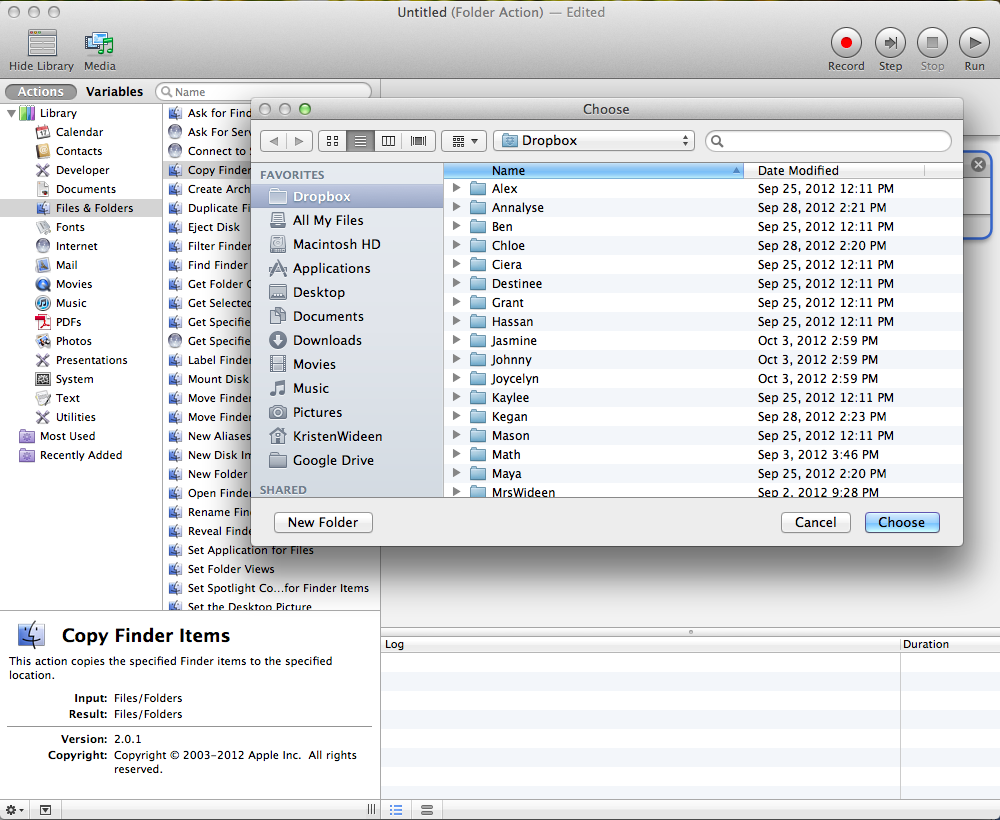
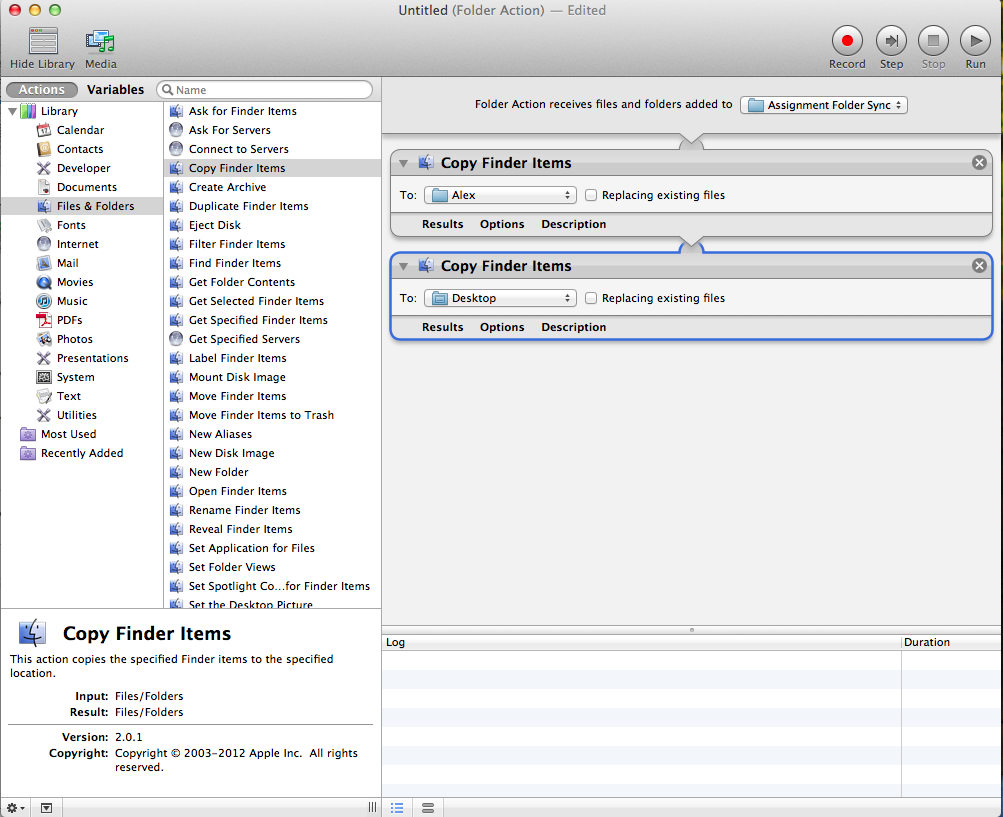
This post is to show you how to create an automated action that takes one file, creates multiple copies itself and places in multiple folders of your choice. This can only be done on a Mac computer.

1. Create a new folder to sync files from.  This folder will allow the file(s) placed into it to sync to multiple folder at once.


I have named the sync folder “Assignment Folder Sync.”


2. Create a folder for each student in your Dropbox folder.


3. Start the Automator App. This app will be found in the Applications folder.


4. Choose  “Folder Action” from the dialogue box, then click on “Choose.”


5. Click on “Files and Folders.”


6. Then “Copy Finder Items.”


7. Click on the “Choose folder” tab next to Folder Action receives files and folders added to


8. Choose the new Sync Folder you created during the first step.


9. Drag and drop “Copy Finder Items” from the left to the right where it states “Drag actions for files here to build your workflow.”


10. Choose a student’s folder from your Dropbox folder that is next to the To: option.  You may have to click on “other…” to find your student’s folder that is inside your Dropbox folder.


11. Choose your first student’s folder.


12. Continue to drag and drop “Copy Finder Items” from the Actions menu on the left to the right.


Repeat steps 9 through 12 to add each of your student’s folders found in your Dropbox folder.

*Be sure to click File and Save… before exiting the Automator App.*


Now syncing the same file to multiple folders, even within Dropbox is a one step process of dragging and dropping the file to your automated folder that is synced.  

Wednesday, October 3, 2012

Charlotte's Web Predictions

Today we finished reading chapter 4 of Charlotte's Web.  Students were asked to predict who the voice was that was talking to Wilbur at the end of the chapter.  Here are some of our predictions.


Tomorrow we will be reading chapter 5 with 3 other classes via Google Hangout.

Writer's Workshop

Today during Writer's Workshop we worked on being good partners.  We are practicing the notice and question part of share time.  Students chose a piece of writing and met with their partner.  Their partner had to share what they noticed about their writing and to ask a question about their  partner's writing piece.  We are also working on our stamina.  We are up to 11 minutes without talking and working the whole time!  Our goal is 13 minutes.  When we reach our goal there will be a special treat for the class.  I hope we get to 13 minutes tomorrow!
Students hard at work.
Annalyse uses her heart map for ideas to write about.
Look at these authors!

Creating Math Problems On The iPads

Today I read the "Math Curse" by Jon Scieszka aloud to the class and discussed the story with the children. I asked them to think about  problems that involve mathematics in their own lives.  (How many times do they brush their teeth in a month?)  We then took out the iPads and I asked the students to make up their own math problems with the ShowMe app.  Here are a few that the students made:


Monday, October 1, 2012

Our First Skype Call Of The Year

Today, we had our first Skype call of the year from Mrs. Lirenman's class in British Columbia.  We are both reading Charlotte's Web for the Global Read Aloud.  Mrs. Lirenman and I introduced the book to our classes and then our classes shared their predictions with each other via Skype.  We have some new students in our class this year, so before we Skyped with Mrs. Lirenman's class, we made an anchor chart titled "Skype Norms"

Skype Norms

1.  Be still (movement is distracting to the people we are talking to).
2.  Speak clearly and loud enough for the guest(s) to hear you.
3.  Use attentive listening (eyes, ears and heart on speaker).
4.  Raise a quiet hand to answer a question.
5.  When speaking on the Skype call, state your name first before you speak.

Our first Skype call went very well, one of the students said, "it was Skypetastic!".  We are looking forward to reading chapter 5 of Charlotte's Web on Thursday with Mrs. Lirenman's class as well as 2 other classes via Google Hangout.